Official Shadowrocket app icon

Official website · User guide

Shadowrocket User Guide

Rule-based proxy client for all platforms: import an existing subscription, set up Global Routing and rule-based routing, and check your connection step by step.

Current version Loading · iPhone / iPad: $2.99 one-time; Mac, Windows, Android, and Linux versions are free

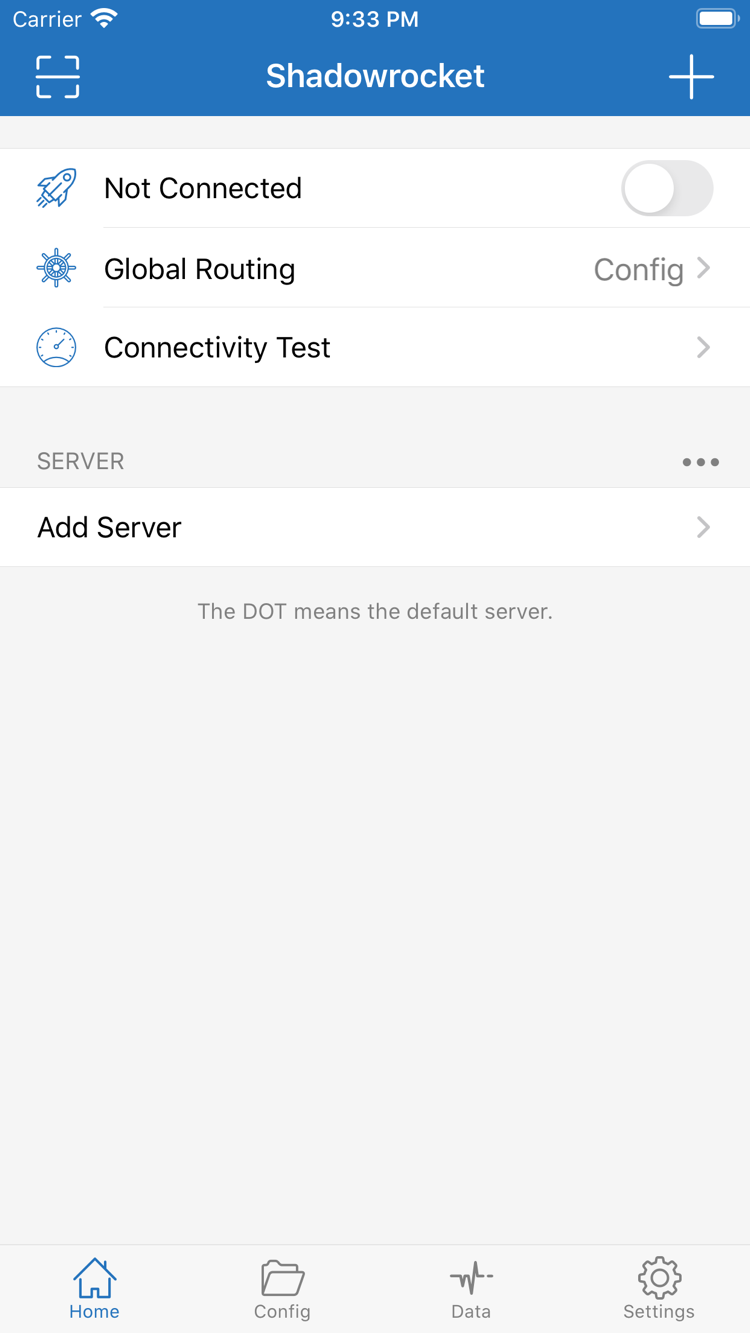
Official Shadowrocket iPhone home screen

PLATFORM / BY DEVICE

Choose your device to find access options

iPhone / iPad: $2.99 one-time purchase on the App Store; Mac, Windows, Android, and Linux versions are free. These two access options correspond to an App Store purchase and downloads from this site. Installation steps are covered on the download page.

First select your operating system, then check the chip type or installation format. A configuration file is not an installer, and a desktop installer should not be sent to a phone. The links below open the relevant platform guide so you can check requirements before downloading.

iPhone / iPad

App Store · $2.99 one-time

Other platform versions are free. iPhone and iPad share the purchase; check the App Store page for system requirements. Open the product page and verify the developer, icon, and app ID before obtaining the app through the storefront for your account region. If you have already purchased it, check your purchases when switching devices before attempting to buy it again.

Mac

Free · Apple Silicon / Intel

Open About This Mac to check the chip type, then use the matching dmg for Apple Silicon or Intel. Do not identify the architecture from the computer's appearance or purchase year alone. If you see “Cannot verify developer” on first launch, confirm the file came from this site, then follow the instructions under Privacy & Security to select “Open Anyway.”

Windows

Free · 64-bit exe

Confirm in system settings that your computer runs the corresponding 64-bit system, then use the installer from the download page. If SmartScreen appears, first verify the download source. If you confirm it is a file from this site and understand the prompt, select “More info → Run anyway” to continue. On a managed computer, follow your administrator's installation requirements.

Android

Free · arm64 apk

Use your system browser to open the download page and get the arm64 apk. If the system asks for permission, allow “Install unknown apps” only for the browser or file manager opening the installer. You can revoke this permission afterward. If tapping the link in WeChat does nothing, open this site in your system browser and download the file there.

Linux

Free · deb / rpm / AppImage

Choose deb or rpm according to your distribution's package manager. For AppImage, grant the file execute permission before launching it from the current user environment. Prompts may appear in different places depending on your desktop environment. If you encounter a permission error, first read the command instructions on the download page; do not grant execute permission to files from unknown sources.

REFERENCE / CORE FEATURES

Rules, connection conditions, and configuration management

Server entries determine where to connect, Global Routing determines how requests are handled, and Config contains rules and related settings. Understand the role of each before making changes to make troubleshooting easier. The topics below are organized by task, with interface names kept in English.

Rule: the first match determines the policy

When maintaining rules in Config, put more specific conditions first. Requests are matched in order and use the corresponding policy once matched; FINAL handles requests that did not match any preceding rule. Routing follows the current configuration only when Config is selected in Global Routing. Proxy and Direct are for proxied and direct connections, respectively. After changing rules, apply the configuration and make a new request to the target. Check the rule that actually matched instead of relying only on whether a page opens in the browser.

DOMAIN-SUFFIX,example.com,PROXY
IP-CIDR,192.168.0.0/16,DIRECT
FINAL,DIRECT
QUICK START / THREE STEPS

From an existing subscription to your first connection

The steps below preview the workflow on iPhone / iPad. Before you begin, prepare your existing subscription link or server details and confirm that the device's current network is working. For the first check, use a few simple steps that you can easily undo, and leave unfamiliar settings unchanged.

  1. STEP 01 / INPUT

    Add Server or Subscribe

    For a single server, enter Type, Host, Port, and authentication fields using the information provided. For an existing subscription, import it using Subscribe. These manage different kinds of entries; do not enter a subscription address in Host. After saving, return to Home, check that an entry appears under SERVER, and confirm that the server you want to use is selected.

    If the list is empty after importing, first check whether the full address was copied, whether it contains extra spaces, and whether the returned content is a subscription the client can recognize. Avoid repeatedly adding the same address to troubleshoot, as this can create duplicate groups. Keep personal subscription credentials on your own device.

  2. STEP 02 / ROUTING

    Choose Global Routing

    For everyday rule-based request handling, select Config and confirm that a usable configuration is available. Proxy is used to check proxy mode, while Direct checks direct mode. Switching modes can help locate a problem, but it will not fill in missing server fields or repair an invalid subscription. Use Scene according to the scene settings in the current interface.

    If the connection works but traffic is not routed as expected, check Global Routing first, then the Config in use, and finally the rule order. More specific rules should precede broader ones, and FINAL should act as a fallback. Restore your preferred mode after testing so that a temporary troubleshooting setting is not left in place.

  3. STEP 03 / VERIFY

    Enable the connection and check actual requests

    Turn on the connection switch in Home, allow the VPN configuration when prompted by the system, and confirm the connection status. Run Connectivity Test, then open the target page to make a new request. A VPN indicator only means the connection configuration is enabled; it does not confirm that every target is reachable or replace checking which rule matched.

    If the connection fails, note the exact error first, then check the basic network, server details, DNS, and routing mode in that order. Change one factor at a time and record the result after testing again. Hide passwords and subscription addresses before sharing logs. The full tutorial also covers the checks for import failures, test timeouts, and web pages that behave unexpectedly after connection.

FACTS / AUTHENTICITY AND USAGE

Verify the app, restore purchases, and back up data

Shadowrocket is a closed-source commercial app. This site is the Shadowrocket website and user guide, covering app access, configuration, and troubleshooting. When checking the product, use the developer and app identifier; do not rely on a similar name, search ranking, or icon colors alone.

  • Developer Shadow Launch Technology Limited
  • App ID 932747118
  • 2 access options App Store / downloads from this site

Verify in the store: check three details

On iPhone / iPad, open the product page and check that the developer is Shadow Launch Technology Limited, the icon matches the official icon on this page, and the app ID in the product link is 932747118. The same name does not guarantee the same app. Check the details of similar search results before proceeding.

The iPhone / iPad version costs $2.99 as a one-time App Store purchase; Mac, Windows, Android, and Linux versions are free. If a search result shows a free price for an app with the same name, do not assume the official price has changed. Return to the product page with the app ID above and verify it. Storefronts may display local currency; refer to the store page for payment details.

Store region: check your account settings first

This app is currently unavailable on the mainland China App Store. If you cannot find it, first check the region of the Apple ID used for Media & Purchases rather than only checking the device language or system region. Changing the device's display language does not automatically change the storefront associated with your account, and searching again will not change which store items are visible.

If you need to change your account region, read the requirements in account settings first. Check that your balance, subscriptions, and payment information meet the requirements, then follow the system process. Do not repeatedly switch settings if you encounter restrictions. Check the App Store page for iPhone / iPad system requirements, and make sure the device has enough storage before installing.

Restore purchases: purchase history is not a configuration backup

iPhone and iPad share purchase history under the same purchase account. After changing devices or reinstalling, sign in to the account used for the original purchase, then find Shadowrocket under App Store purchases. If the page asks you to buy it, check the account and purchase history first; do not mistake a different account's sign-in status for a lost purchase.

Reacquiring the app restores access to the client, but does not necessarily restore server entries, subscription links, or configuration files. If the old device is still available, check iCloud sync status and separately export any Config files you need to keep. After restoring on a new device, verify entries, routing, and connections one by one. Do not erase data from the old device just because the app appears on the new one.

Two price tiers: manage the client and service separately

The iPhone / iPad version costs $2.99 as a one-time App Store purchase; Mac, Windows, Android, and Linux versions are free. Buying the client does not include a service plan. The app purchase is for the client itself. It does not cover operating costs for your existing servers or replace your provider's management of subscription validity and usage limits.

This site does not provide, sell, or recommend nodes or subscriptions. The tutorials assume that you already have your own subscription or server details, and explain how to import, update, and check the configuration. If a subscription expires, server credentials change, or the service has restrictions, check the information from your own service rather than reinstalling the client or buying the app again.

Other platforms: check the source and architecture

Access links for Mac, Windows, Android, and Linux are grouped on the all-platform download page. Installation files are provided through this site's /dl/shadowrocket/ path. Mac has separate dmg files for Apple Silicon and Intel; Windows uses the corresponding 64-bit installer, Android uses arm64 apk, and Linux files vary by distribution.

The system may block the app on first launch. “Cannot verify developer” on Mac, SmartScreen on Windows, and installation-source permissions on Android are different mechanisms and should not be handled the same way. Verify the source first, then follow the relevant steps on the download page. If the prompt differs from the instructions, keep the original error text, pause before granting further permission, and consult the relevant section.

Updates and backups: keep a configuration you can restore

Manage iPhone / iPad app updates through the App Store. For other platforms, get updated installers from this site's download page. Updating the app and updating a subscription are separate tasks: the former replaces the client, while the latter refreshes the contents of your existing subscription. Editing a rules file does not automatically change the service provided by the server.

Before updating or reinstalling, save the current working configuration, note the Global Routing mode in use, and keep your subscription address safe. When testing a new configuration, change one setting at a time so you can return to the previous state if something goes wrong. When sharing troubleshooting details, include your system, steps, and error message, but remove passwords, personal addresses, and links containing credentials.
READING / PRACTICAL GUIDES

Guides to installation and migration

These three articles cover Android installation, restoring after changing devices, and first launch on a computer. If your connection is already working, start with the backup and migration guide. If you are still seeing a system installation prompt, resolve the file and permission issue for your platform before importing a configuration.

Download & Install

Install Shadowrocket on Android: apk download and installation permissions

Follow the steps to download in a browser, open the file, and authorize installation. If the download link does not open in WeChat, switch to the system browser. For a permission prompt, confirm it applies to the browser or file manager you are using rather than enabling all sources indiscriminately.

Advanced Setup

Migrate Shadowrocket to a new device: iCloud sync and configuration recovery

Check app purchase history, server entries, subscription addresses, and Config separately. Before migrating, confirm which items have synced and which need to be exported individually. After restoring, verify with an actual connection; an enabled sync switch does not mean all data has reached the new device.

Download & Install

Install Shadowrocket on desktop: choose a chip version and allow the app to run

Check your Mac architecture in About This Mac, then choose the matching dmg. If SmartScreen appears on Windows, verify the download came from this site, then review when to select “More info → Run anyway.” Do not confuse a system security prompt with a server connection issue.